




If you did not receive the activation email, please let us know at [email protected]
Everyone who wants to be able to use the account, must have their own login and password.
Once the account has been activated by the Account Owner, they can invite their spouse to create their own login and password.
Have the Account Owner follow these simple steps:
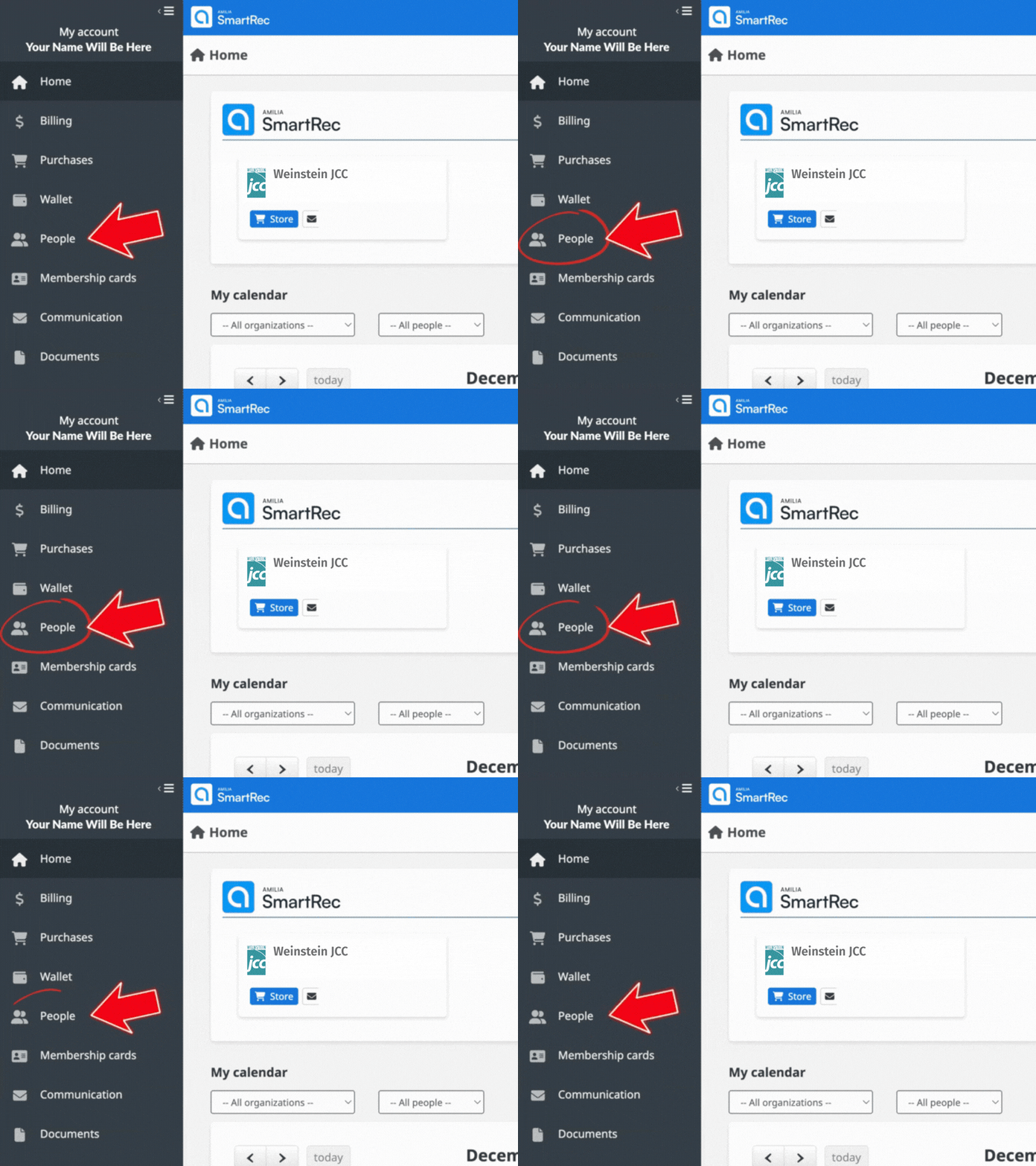
1. Login and along the left-hand menu, click on People.
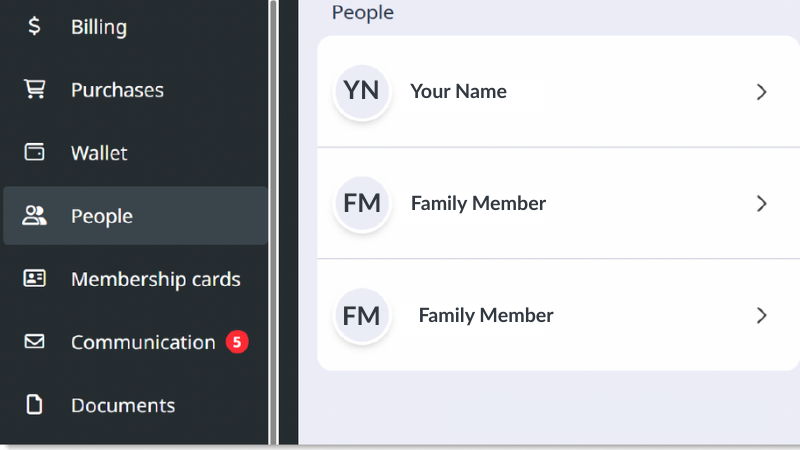
2. All family members are listed here.
Click on the person you want to give registration and payment capabilities to (must be 18 years or older).
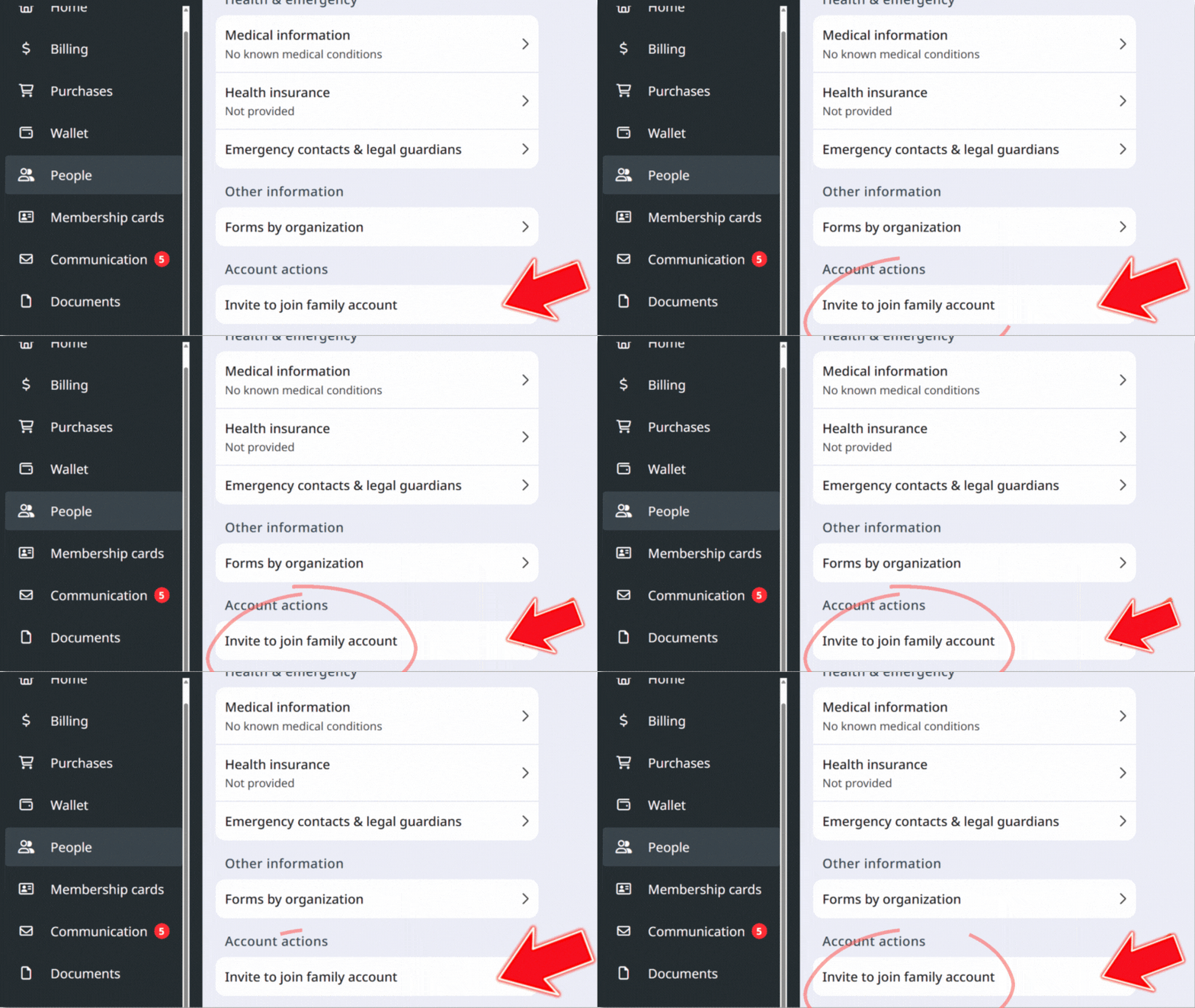
3. Scroll down to the bottom of that person’s page and click on Invite to join family account to send them an activation link.
They will now receive an email from [email protected] asking them to create a login.
All credit card and bank information was transferred with the account owner, but does not get applied to others in the family account.
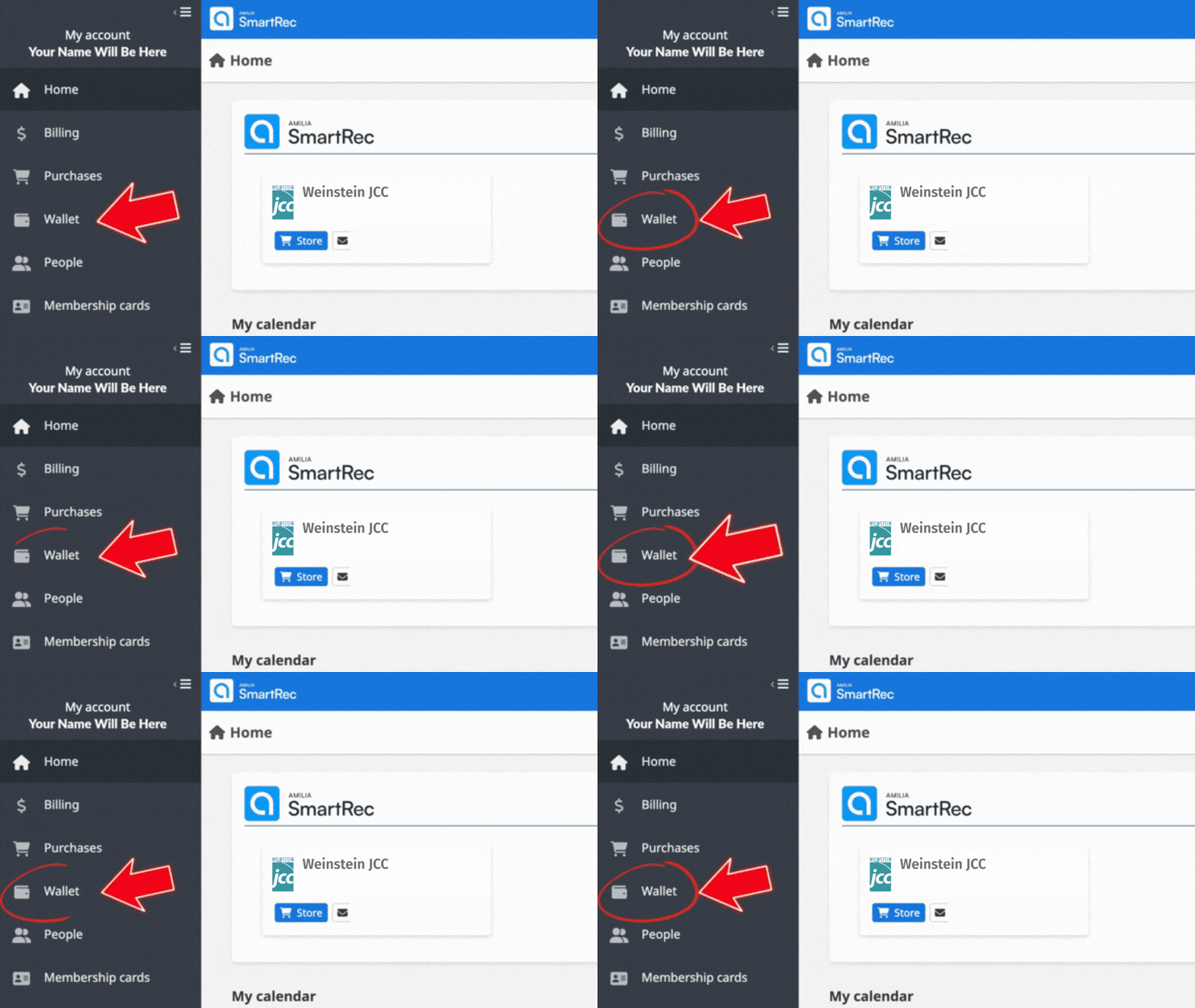
4. Setting up your wallet is easy:
Login and along the left-hand menu, click on Wallet.
Once in there, you can enter credit card and bank information.
How to Find our Programs:
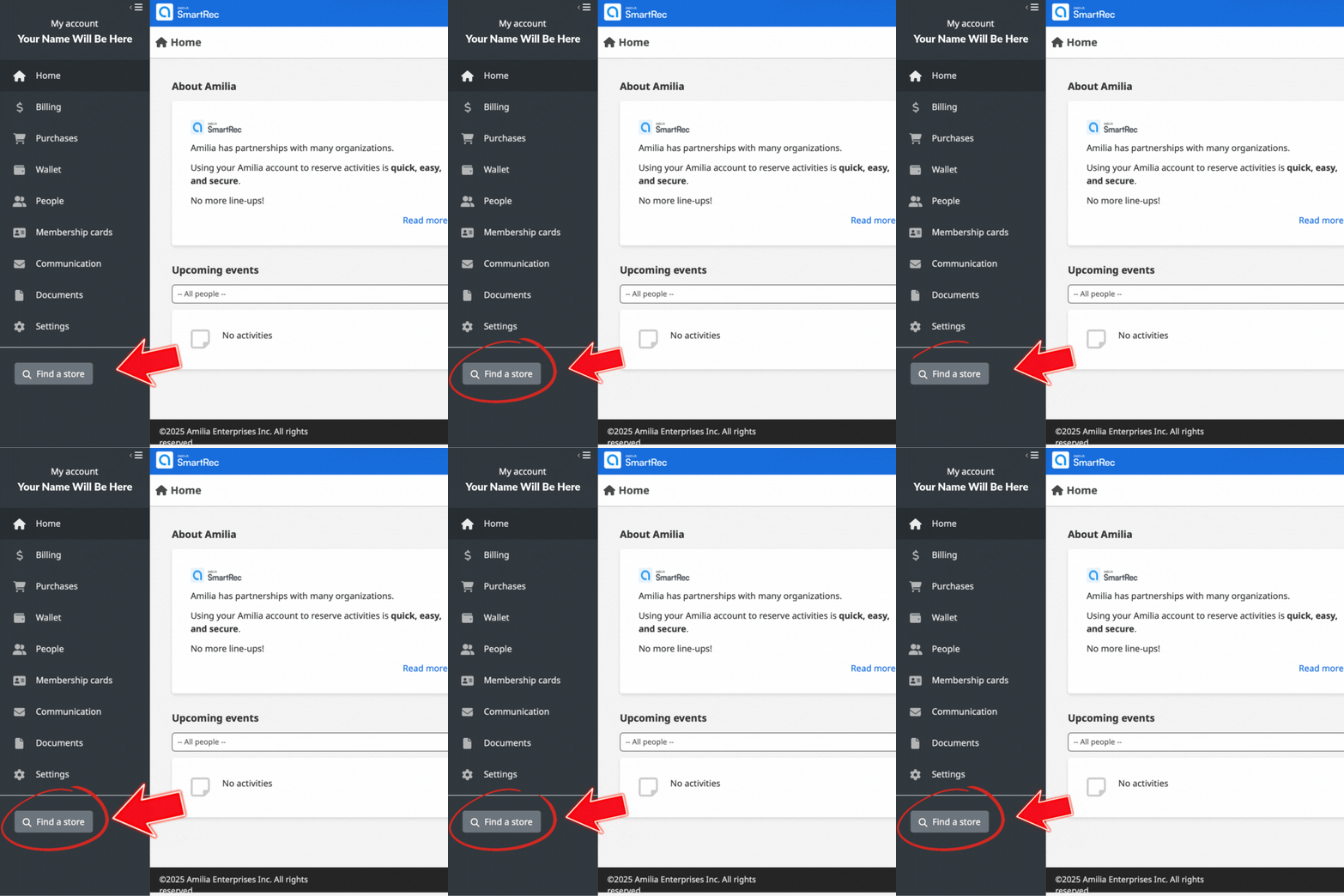
5. Login and along the left-hand menu, go all the way down and click on Find a Store.
Search for the Weinstein Jewish Community Center and click on it when it comes up.
Click on the green button that says Shop to connect to our programs. You’re all set! Next time you log in, our Shop will be on your account and you can just click on it to register.
After you’ve activated your account, download the easy-to-use app.
We invite you to download the Amilia app so you can register for programs on your phone,
view your household activity, and get your virtual swipe for the Member Services Desk.